
Are you asking how to switch off CCTV camera systems without damaging the system? If you need privacy for a short time, you may want to turn off the CCTV camera. You might also need to turn it off for routine maintenance.
It can also help reduce power consumption. This step-by-step tutorial will show you how to switch off security camera systems. This guide covers manual and remote shut-off options. By using these proven methods, you can manage your surveillance system and protect your equipment.
Why You May Need to Switch Off a CCTV Camera
Temporary Privacy Requirements
Privacy is a fundamental concern for many homeowners and business owners. You may need to turn off CCTV cameras during family gatherings temporarily. You may also turn them off when hosting guests. You may also turn them off during private moments at home. Modern surveillance systems can be set up to respect privacy and still keep people safe. It is about finding the right balance for your life and business.
Maintenance & Repair Purposes
Regular maintenance keeps your security system functioning optimally. Whether you’re cleaning lenses, inspecting cables, or replacing parts, turning off cameras helps keep technicians safe on site. Professional maintenance requires a proper shutdown to prevent electrical hazards and equipment damage.
Reducing Power Consumption
Energy efficiency is important for your bills and your responsibility to the environment. Most wired CCTV models use about 4 to 15 watts, depending on features and runtime. However, popular recorders from brands like Hikvision and Dahua use 40 to 60 watts continuously. By turning off cameras you do not use at certain times or seasons, you will save energy. Also, you can reduce your monthly electricity costs.
Things to Know Before Turning Off a CCTV Camera
Difference Between Power Off & Disable Recording
Knowing the distinction between these two methods is essential. The moment you turn off your camera, all functions stop. It won’t record or stream. It won’t use power. However, shutting off recording keeps the camera active but stops video recording.
You can also turn off recording while still receiving motion warnings. Knowing the best method for your needs will prevent unnecessary shutdowns.
Impact on Home & Office Security
Before turning off your cameras, take note of your security requirements. Disabling surveillance for a short period creates vulnerabilities. Always plan camera downtime during low-risk times. Be sure to notify the appropriate personnel. Be alert during shutdown times. Some systems let you deactivate certain cameras so you can keep key areas under surveillance. You can temporarily deactivate less important areas.
Backup Important CCTV Footage First
Protecting your recorded footage is vital before any system shutdown. Cloud backup solutions offer safe offsite storage. They protect against theft, recorder damage, and hard drive failure. Major cloud storage providers use strong encryption and backup systems. These systems keep your surveillance data safe and easy to access. Always back up key footage before maintenance shutdowns. This is vital when troubleshooting possible hardware issues.
How to Switch Off CCTV Camera Manually
Turning Off Camera Power Supply
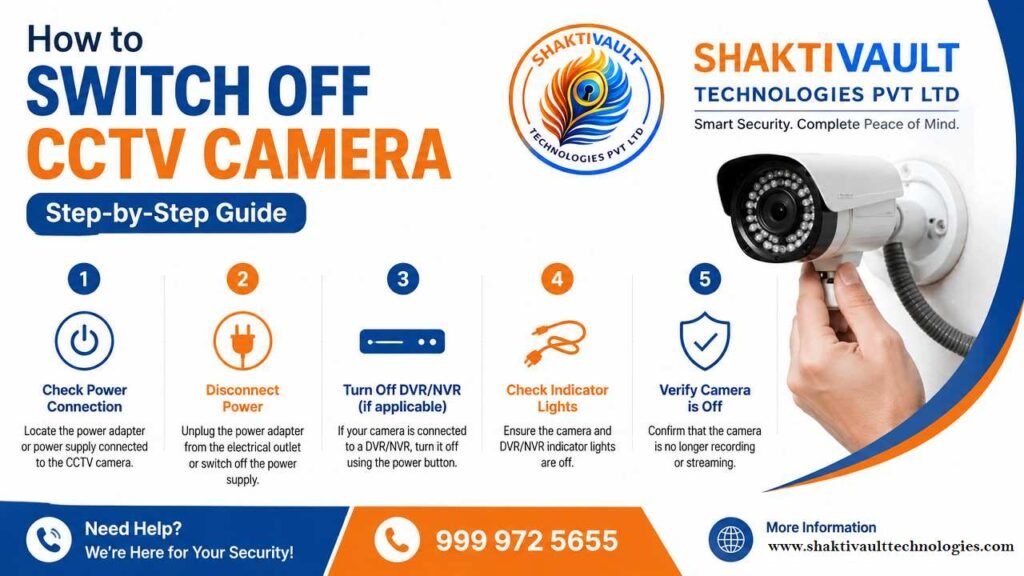
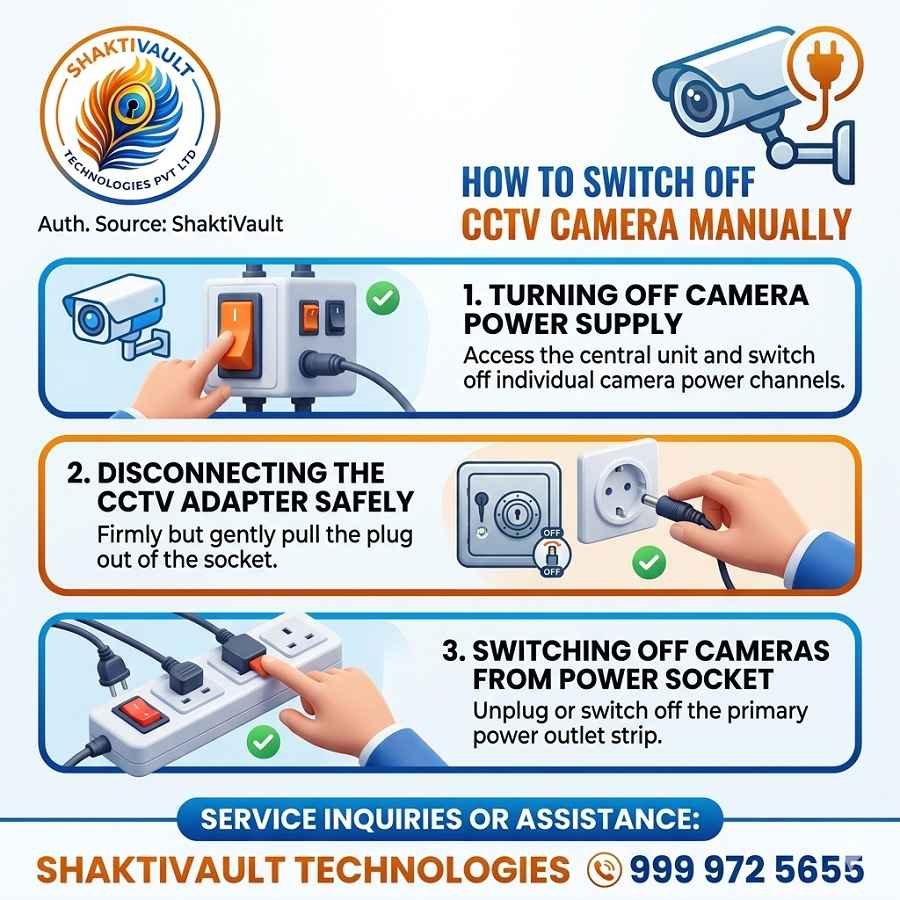
Begin by identifying the main power supply for your camera. For most systems with wires, find the main power source or circuit breakers. Be sure to trace the camera’s power cable to its connection point. Before disconnecting anything, make sure you have picked the right camera. This is particularly important for multi-camera configurations. If you spot it, remove the power cables. Switch off the circuit breaker that is marked “Security” or “Surveillance.”
Disconnecting the CCTV Adapter Safely
When using power adapters, be cautious with connections. Make sure to shut down the entire system before cutting any cables. For Power-over-Ethernet (PoE) cameras, pull the Ethernet cables away from the camera before disconnecting them. The power is shut off, and the data is lost at once. It guarantees a smooth power and data shutdown. Avoid sudden disconnections. Check the manufacturer’s instructions to avoid damaging delicate components and ports.
Switching Off Cameras from Power Socket
For cameras that use standard outlets, find the power socket made for your camera. Many dome cameras have discrete power switches on the mounting bracket. Turn these switches counterclockwise until you hear a clear click.
That click confirms the shutdown. Examine the indicator light of your device. It should dim and verify that power is off. Be sure to wait a few minutes before resetting the power to ensure the system is reset correctly.
How to Turn Off CCTV Cameras from DVR or NVR
Disable Camera Channel Settings
You can access your DVR and the NVR’s administration interface via the menu bar. Click channel settings, then select the camera you want to turn off. Most systems allow you to disable one channel without affecting the others. This method keeps active cameras safe and secure, while allowing certain ones. Make sure to save all changes before you leave the menu.
Stop Recording from DVR/NVR Menu
Within your recording settings, select “Schedule” from the storage menu. Cameras in motion detection mode record only when the sensor detects movement, saving significant storage space. This allows you to disable continuous recording while maintaining motion-based alerts. Configure the recording schedule for each channel. Save and apply all changes in your system’s user interface.
Power Down the Entire CCTV System
To shut down completely, locate the power switch on your NVR or DVR. It’s usually located on the side or back panel. Turn the power button or switch to the off position. Watch for all indicator lights to go out completely. For systems hardwired to an electrical panel, locate the labeled circuit breaker and turn it off. When power is restored, restart your NVR or DVR system. This will restore all feeds and ensure the system’s long-term operation.
How to Switch Off WiFi CCTV Cameras
Turn Off Camera from Mobile App
The latest WiFi CCTV systems provide convenient mobile control via apps. The most popular brands, such as Viewtron, Ring, and Arlo, offer apps for iPhone and Android. In your security application, locate the camera you want to deactivate, then access its controls. Most applications have a simple toggle button for ON/OFF or a power management section. Tap to turn off cameras remotely. This method is available anywhere that has Internet access.
Disconnect Camera from WiFi Network
You can access your camera’s network settings through your mobile app or the web interface. Go to the WiFi settings, then choose “Disconnect” or “Forget Network.” This will completely remove cameras from the office or home network. For wireless cameras powered by batteries, it is possible to remove the batteries and disconnect completely. Always confirm disconnection in your application before assuming the camera is offline.
Disable Smart Monitoring Features
Smart monitoring features like cloud recording and push alerts use more power and bandwidth. In your app’s settings, you can access your notifications preferences and deactivate motion alerts when you wish. You can temporarily pause cloud recording if needed. Some systems provide master-arm or master-disarm features. They can control all cameras simultaneously using a single click. It makes managing bulk easier.
How to Turn Off CCTV Cameras Remotely
Using Mobile Applications
Advanced CCTV systems have complete mobile management. These apps let you view live feeds, adjust settings, and shut off cameras on your tablet or smartphone. The master arm and disarm function of Viewtron allows you to enjoy modern-day convenience. With just one button, you can control the entire system remotely. This can be useful when you’re on the go and need to deactivate the camera to protect yourself or test.
Accessing CCTV System Through PC
Desktop software gives you more comprehensive control than mobile applications. Access your NVR or DVR via its web interface using the system’s IP address. Log in with administrator credentials to gain access to all control capabilities. Look for camera control panels, and turn off particular cameras or the entire system if needed. This technique provides granular control and extensive activity logs for monitoring purposes.
Remote Shutdown Options in Smart Cameras
Smart CCTV cameras equipped with intelligence permit remote power management. Certain systems come with scheduled shutdown timers. Your cameras can be set to shut down automatically at certain times throughout the day. Other models support geofencing. This automatically removes cameras when the phone is in the home area. These advanced features offer security and convenience while automatically adapting to your needs.
How to Disable CCTV Recording Without Turning Off the Camera
Pause Motion Detection Recording
You can access your camera’s recording settings in the DVR/NVR menu or the mobile application. Motion detection mode ensures cameras are on and monitoring. It records only when it detects motion. This helps keep things secure. It also reduces storage needs and power use. Set sensitivity levels to reduce false alarms caused by animals, weather conditions, or swaying trees.
Disable Scheduled Recording
In the settings for your recording schedule, you can disable recording at specific times. Other camera functions will continue to function. The selective scheduling feature ensures that cameras remain operational for live monitoring. It also stops recording nonstop at times when there is no need for it. Set up different schedules for weekends and weekdays depending on your schedule. Always confirm and apply any changes to your schedule using your computer’s verification prompts.
Stop Cloud Recording Features
If your system uses cloud backups, you can access the cloud settings in the app or the web interface. Pause cloud recording temporarily without removing local recording. This protects your footage’s privacy and allows you to keep backups of your on-site storage. Be aware that a pause in cloud services could violate regulations in certain sectors. Be sure to check your requirements before making any changes.
Common Problems While Switching Off CCTV Cameras
Camera Still Recording After Shutdown
If your camera keeps working after you’ve disabled it, make sure the power source is off. Certain cameras have two power connections: one for the main cable and one for the backup battery. Make sure all power sources are off. Verify that the settings of your DVR/NVR display the camera as disabled. Try checking your mobile application for live feed access. If issues persist, you can contact technical support for advanced diagnosis.
DVR/NVR Restarting Automatically
Automatic system reboots are typically a sign of issues with the power supply or drive failures. DVRs with failed hard drives will constantly reboot if the system cannot recognize the drive. Check this by shutting down your system, then disconnecting the hard disk. If it stops rebooting and the drive is damaged, it’s time to replace it. In addition, power supply issues can cause voltage instability. Try a different outlet or think about a professional service.
Mobile App Showing Camera Online
Sometimes your app shows the camera as active even after you turn it off. This is usually a sign that the issue is due to caching or a synchronization delay. Close your mobile application, then open it again to update the state. Log off and sign in to your account. If the camera remains online, then restart the WiFi router and the camera. For persistent issues, reinstalling the application may be necessary. It may also be necessary to transfer your data through your security service provider.
Important Safety Tips Before Turning Off CCTV Cameras
Avoid Damaging Power Connections
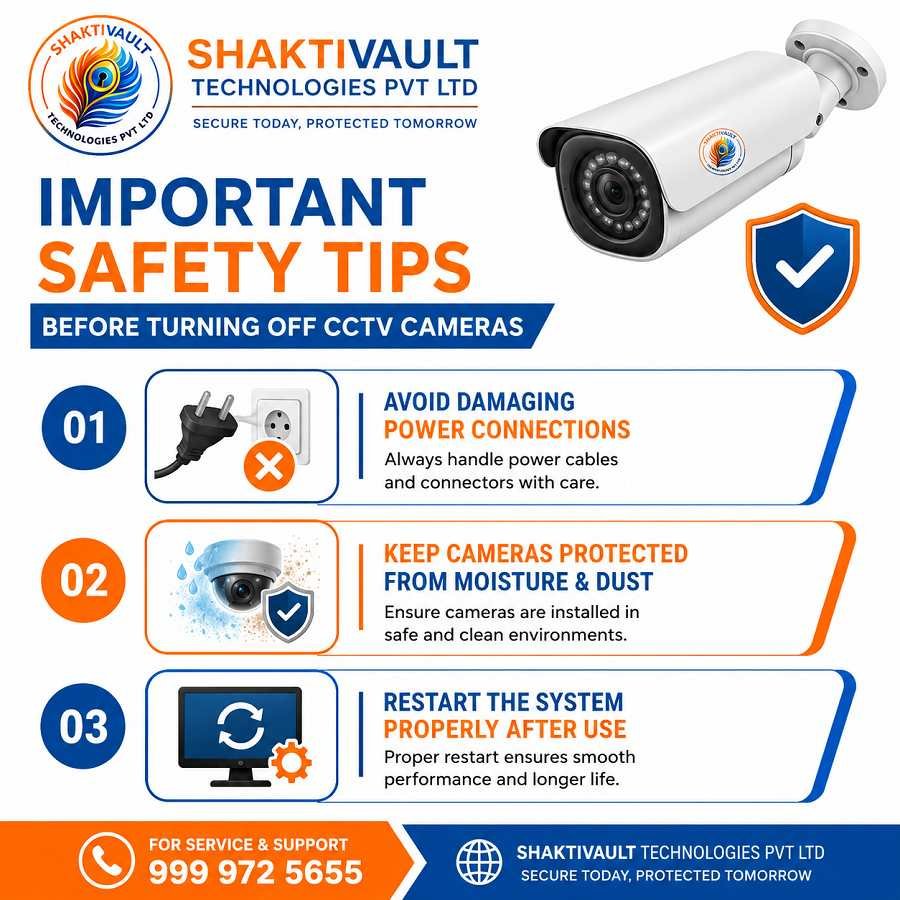
Make sure to handle all electrical connections carefully and in compliance with safety standards. Do not pull connectors or cables with force. Make sure your hands are clean before handling electrical connections. Use the right tools for circuit breakers, rather than just your hands. Before disconnecting the outdoor cable, examine the connectors for corrosion or moisture. Always wear the appropriate safety gear while working on electrical systems. If you need to do complex installations, speak to an expert.
Keep Cameras Protected from Moisture & Dust
Moisture is the most significant risk for CCTV cameras. If your camera isn’t functioning, you must protect your connections from the weather. Install waterproof shields for each outdoor connector. Apply silicone sealant around cable entry points to block water from leaking in. For outdoor systems, connect cables through protected or junction boxes. Install weatherproof covers if your cameras won’t be employed during rainy times. This preventive maintenance protects your investment and helps your equipment last longer.
Restart the System Properly After Use
After you finish maintenance or any required downtime, you must properly reboot your device. Turn on your NVR or DVR, then wait for a complete boot-up before powering on each camera. Examine all indicators to confirm that everything is operating normally. Use your mobile application to ensure your cameras are operating properly. up and functioning. Make sure you test motion detection to ensure your system is properly configured. Check your system over an initial period of time. Look for any issues before you resume normal operation.
Final Conclusion
Best & Safest Ways to Switch Off CCTV Cameras Properly
Knowing how to shut off CCTV cameras correctly safeguards your investment. This also helps keep the system in good working order. It doesn’t matter if you shut off the power manually, use the NVR or DVR menu, or control it via a mobile app; all methods work well. Always back up important footage before shutting down. Follow the manufacturer’s instructions. Keep connections safe from damage and weather.
For expert help with CCTV system management, maintenance, and improvement, contact Shaktivault Technologies.
We are your trusted partner for security solutions. Our skilled team helps homeowners and businesses manage their surveillance systems safely and efficiently. With expertise in major camera brands and system types, we offer full support for your security needs.
Call Shaktivault Technologies at +91 – 981 094 0561 for expert help. Get advice on switching off CCTV cameras and system maintenance. Ask about backup solutions and professional installation services. We offer great prices and simple solutions that fit your specific security needs. Trust our proven expertise to keep your surveillance system running at peak performance. We respect your privacy and security needs.
Your CCTV system is an investment in safety. Manage it well with expert support from Shaktivault Technologies.
FAQs – How to Switch Off CCTV Camera
Can I turn off a CCTV camera without affecting recorded footage?
Yes Disable recording or change the DVR/NVR schedule instead of cutting power. Footage already stored on the recorder or in the cloud stays intact.
Is it safe to disconnect a camera while the system is running?
No. First, power down the specific channel in the DVR/NVR or camera app. Or stop recording first. Then disconnect power to prevent data loss or hardware stress.
How do I temporarily disable a WiFi camera remotely?
Use the camera’s mobile app to turn off live view or recording.
You can also use the “arm/disarm” feature.
You can disconnect it from the WiFi network in settings.
Will switching off one camera create security risks?
Potentially. Disabling a camera creates a blind spot. Keep critical cameras active. Schedule downtime for low-risk periods. Notify staff if needed.
Do I need to back up footage before maintenance shutdown?
Yes. Export or upload important clips to the cloud or external storage before shutdown. This helps prevent accidental loss during repairs or hardware failures.