
Do you want to know how to delete CCTV camera recording safely and easily? Whether your DVR storage is full, you need to delete old footage, or you want better control. This step-by-step guide covers everything. From DVR and NVR systems to mobile apps and brands like Hikvision, CP Plus, and Dahua, you will learn how to delete CCTV footage. You will also learn how to keep important recordings safe. For CCTV installation, storage upgrades, and expert support in India, call Shaktivault Technologies at +91 – 981 094 0561. They offer great prices and trusted service.
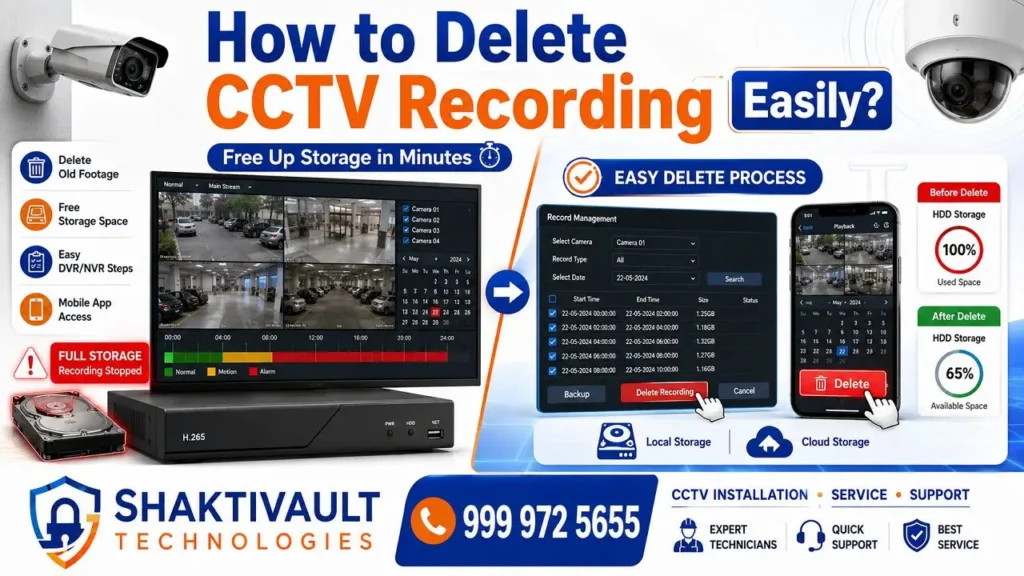
Why You May Need to Delete CCTV Camera Recordings
Storage Space Full Problems
One of the most common reasons people search for how to delete CCTV footage is a full hard drive. A standard 1 TB built-in HDD in an NVR system can support only four cameras.
It can record Full HD (1080p) footage for about 6 days, 24/7.
After that, the footage gets overwritten. When storage fills up, and auto-overwrite is off, the system may stop recording. This is a serious security risk.
Removing Unwanted or Old Footage
Some recordings are not worthy of keeping. Films that are old and have no security value eat up the space on your disk. Removing irrelevant videos, including accidental setup recordings or quiet routine footage, helps keep your CCTV system tidy. This also helps you observe the privacy guidelines.
Improving CCTV System Performance
A cluttered hard drive can slow down the performance of CCTV DVRs and NVRs. Regularly clearing old recordings ensures smoother playback, faster searches, and consistent recording quality. Think of it like clearing your phone storage — the system just runs better.
Understanding How CCTV Recording Storage Works

DVR vs NVR Storage Systems
The DVR (Digital Video Recorder) systems are compatible with analog cameras. They store footage locally on a hard drive. NVR (Network Video Recorder) systems are compatible with IP cameras. They use internal hard drives and provide higher-quality video. They also have various storage options. Both systems record in a loop. Once storage is full, older recordings are replaced automatically. Analog DVR systems generally store recordings for between 7 and 30 days. It depends on the drive’s size. NVR systems provide more flexible retention time periods.
Hard Disk Storage in CCTV Cameras
Most CCTV systems store footage on an internal HDD inside the DVR or NVR unit. The storage duration depends on storage space, camera resolution, compression, bit rate, and the number of cameras. Some cameras also use microSD cards for local recording. You can format them in the camera app. Or, remove the card and connect it to a PC.
Cloud Storage & Mobile App Recordings
Modern CCTV systems provide cloud storage. The subscription plan you sign up for typically determines the retention period for cloud-stored footage. It could range between a few days and several months. Cloud recordings can be accessed from any device using the manufacturer’s mobile application. You can manage them easily and erase them from a distance.
How to Delete CCTV Camera Recordings from DVR
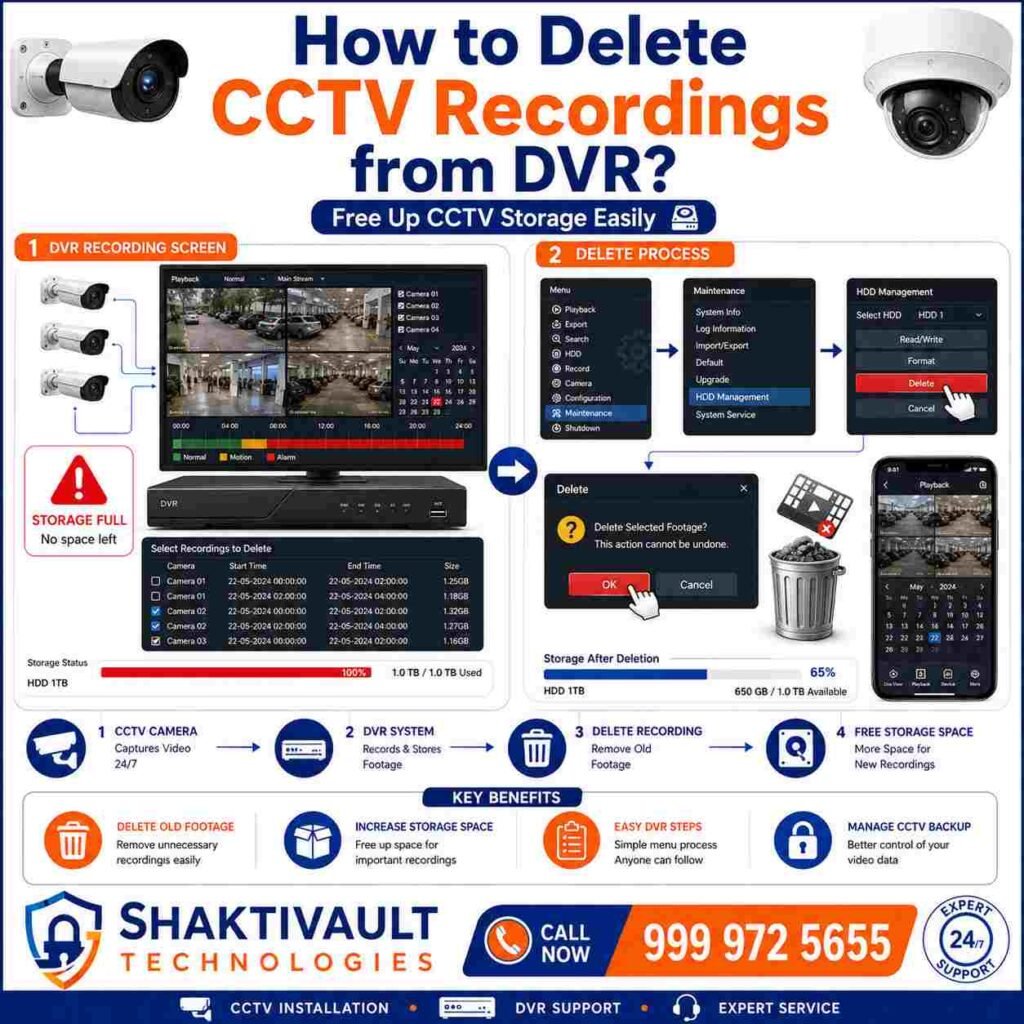
Login to Your DVR System
Connect your DVR to a monitor using a VGA or HDMI cable. Use your admin credentials to log in. Admin access is required. Without the right username and password, you cannot delete or manage recordings.
Open Playback or Storage Settings
Once logged in, navigate to the Storage Management or Playback section in the main menu. This is where you can view recordings filtered by date, time, and camera channel.
Delete Selected CCTV Footage
Utilize the date and hour filters to find the specific recordings you would like to delete. Select the files, choose the delete option, and confirm the deletion. If you’d like to erase all your videos at once, select the Format Hard Drive option in Disk Management. Importantly, formatting does not erase video files. The settings on your DVR, such as motion detection and email alerts, remain the same.
How to Delete CCTV Footage from NVR Systems
Access NVR Recording Settings
Connect your NVR to a monitor or access it via the web interface on your PC. Log in with admin credentials and go to Device Settings or Configuration.
Remove Specific Date & Time Recordings
Navigate to the Storage section. Use the calendar and time filters to find recordings from a specific date or time range. Select the files and confirm deletion.
Note: most NVR makers do not let you delete single clips in a time range.
Formatting is the most reliable option.
Format NVR Hard Drive Safely
Go to Disk Management inside the Settings menu. Select the hard drive you want to format and click Init or Format. Confirm the process. This will permanently erase all recordings. Always back up any important footage before doing this.
How to Delete CCTV Recordings from Mobile Apps
Delete Playback Videos from Mobile Storage
Open your CCTV camera’s mobile app — such as Hik-Connect, CP Plus gCMOB, or Dahua DMSS. Navigate to the Playback or Events section. Select the specific date or video clip you want to remove, tap the Delete or trash can icon, and confirm.
Remove Cloud Saved CCTV Footage
Log in to your cloud storage account through the app. Go to the Recording List or a recording page. Select the videos you want to delete. Tap the Delete icon. This removes them permanently from the cloud server.
Manage CCTV Backup Files Easily
For cameras equipped with SD card storage, you can format your SD card right from the app. Navigate to the Settings within the app. Locate the SD card’s details. Tap Format to quickly clear all stored footage. This is a great way to free the space, without physically manipulating the card.
How to Delete CCTV Recordings in Popular Brands
Hikvision CCTV Recording Delete Process
Hikvision DVR and NVR systems have loop recording on by default. Older footage is deleted when storage space runs out. To manually delete recordings, go to Record > Storage, select the hard drive, and click Init to format it. On models that support file-level deletion, go to Playback, select the camera and date, open File Management, choose the clips, and click Delete — though this option is not available on all Hikvision models.
CP Plus CCTV Footage Removal
To erase recordings of the CP Plus DVR, connect it to a computer or monitor. Log in with administrator credentials. Go to Record Management from the Record Management menu. Use date and time filters to select specific recordings and confirm the deletion. To delete recordings from SD memory cards in CP Plus cameras, remove the memory card. Connect it to a computer with the card reader. Open File Explorer and delete the unneeded footage.
Dahua CCTV Recording Management
For Dahua systems, open the Main menu, select Playback, then select either the date or the camera, and locate the video recordings you wish to delete. To delete all the footage, go to Storage Management, select the recording or hard drive section, then choose the Format option. Dahua allows you to enable auto-overwrite by going to Settings> Record> Enable Overwrite. When the storage capacity is full, it will automatically delete older footage.
Common Problems While Deleting CCTV Footage
Unable to Delete CCTV Recordings
If you cannot delete recordings, you may not have enough permission.
Make sure you are logged in as an administrator.
Also, check that no file-lock settings are active.
Check the system settings for limits on deleting footage.
DVR/NVR Storage Not Formatting
If formatting fails, it could be due to overloaded system resources or a firmware issue. Restart the DVR/NVR and update the firmware to the latest version. Then try formatting again.
Recording Automatically Reappearing
If deleted recordings seem to reappear, it is often due to cached files or an incomplete deletion process. Clear the system cache and repeat the deletion. Also, check if auto-backup or cloud sync is re-uploading footage.
Important Things to Do Before Deleting CCTV Footage

Backup Important Security Videos
Always back up critical recordings before deleting anything. Insert a USB drive or external storage into the DVR or NVR.
Go to the Backup menu.
Select the footage you want to save.
Export it to the external device.
Check Legal & Security Requirements
Before deleting any CCTV footage, check whether it is legally required to be retained. In many business and public settings, organizations must retain surveillance footage for a set period of time. This is required under data protection or security regulations.
Save Evidence Before Permanent Deletion
If the footage shows a security incident, theft, or another event under investigation, save a copy before erasing it. Once formatted, CCTV recordings are generally unrecoverable using standard methods.
Tips to Manage CCTV Storage Efficiently
Enable Auto-Overwrite Recording
Most DVR and NVR systems have an auto-overwrite feature. It deletes the oldest footage when storage is full. Enable this to ensure continuous recording without manual intervention.
Upgrade Hard Disk Storage Capacity
If you frequently run out of space, it may be time to upgrade to a higher-capacity hard drive. Investing in larger hard drives from the start is a practical way to keep recordings longer. It also reduces the need for constant manual deletion.
Use Motion Detection Recording Mode
Switching from 24/7 recording to motion detection mode greatly cuts the amount of stored footage. Your system records only when it detects motion. This saves a lot of disk space. It also extends retention periods.
Final Conclusion
Best Way to Delete & Manage CCTV Camera Recordings Safely
Learning how to delete CCTV recordings will help you protect your privacy while keeping your system running smoothly. Also, it prevents the full drive from being used. Always back up important files before deleting them. Use administrator access to delete files. Automated overwrites can simplify storage management. It doesn’t matter if you’re using a digital video recorder, an NVR, smartphone applications, or cloud-based storage. This guide will help you keep the security equipment in top condition.
To install CCTV, store upgrades and replacements of hard disks, and provide ongoing support throughout India, you can trust Shaktivault Technologies. They offer great rates on CCTV camera systems, NVR/DVR systems, and hard-disk upgrades. This keeps your security system up and running.
📞 Call Shaktivault Technologies today at +91 – 981 094 0561. Get expert advice, great deals, and trusted installation.
FAQs – How to Delete CCTV Camera Recording
How do I delete CCTV footage from a DVR?
Log in to your DVR using a monitor and admin credentials.
Go to Storage Management or Playback.
Select the footage by date and time.
Choose Delete, or format the hard drive.
Can I delete specific recordings from an NVR system?
Yes, you can access NVR settings using a monitor or the web.
Go to Storage.
Filter by date and time.
Select the files.
Delete them.
For a full reset, use Format in Disk Management.
Back up your data first.
How to remove CCTV recordings from a mobile app?
Open apps like Hik-Connect, CP Plus gCMOB, or Dahua DMSS. Go to Playback or Events, select clips, and tap Delete. For SD cards or cloud, use app Settings to format or remove.
Why can’t I delete CCTV footage on Hikvision or CP Plus?
Check admin login and permissions. For Hikvision, use Record > Storage > Init. On CP Plus, go to Record Management. Restart and update firmware if formatting fails.
Is it safe to format the DVR/NVR hard drive?
Yes, it erases only recordings—settings stay intact—always back up important footage via USB first to avoid data loss.
How long does CCTV storage last before needing deletion?
A 1TB HDD holds 6-30 days of 1080p footage (4 cameras, 24/7). Enable auto-overwrite to loop recordings automatically without manual deletes.
What should I do before deleting CCTV recordings?
Backup critical videos to USB/external drive, check legal retention rules, and save evidence for incidents. Upgrade the HDD or use motion detection to better manage space.